Connect an MCP server to Claude in about 2 minutes
Four steps. No installs, no config files, no API keys. Pick a server, sign up, paste a URL.
What is MCP?
MCP (Model Context Protocol) is a standard way for AI assistants like Claude to talk to outside tools and data. An MCP server exposes a set of tools — like searching property records or checking market data — that Claude can call when you ask it to.
Pick a server on mcpcrush
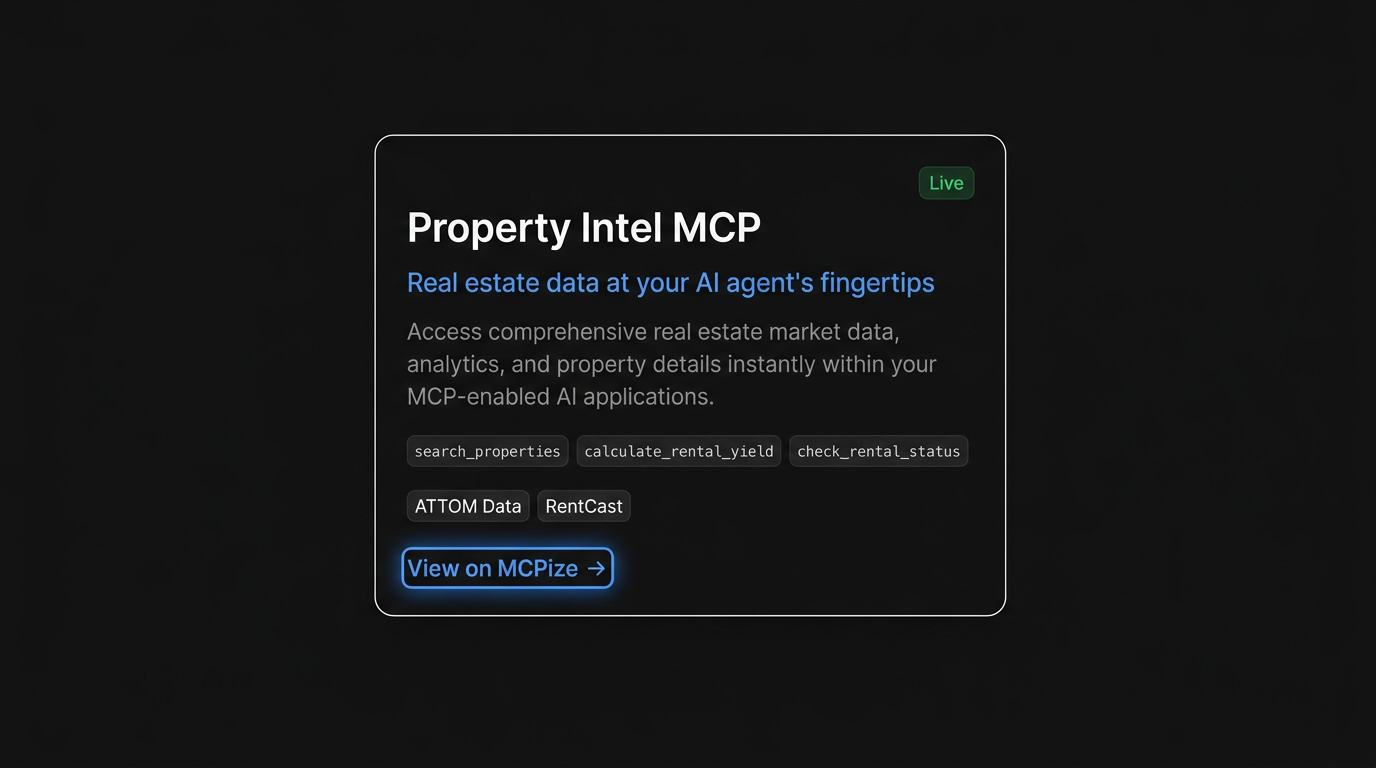
Browse the catalog and click View on MCPizeon any server you want to use. This takes you to the server's listing page on MCPize.
Pick a plan and sign up on MCPize
Choose a plan, then create your MCPize account. You can sign up with Google or email — it only takes a few seconds.
No keys to manage
All plans come with a personal MCP URL. You don’t need to bring your own API keys or run anything yourself.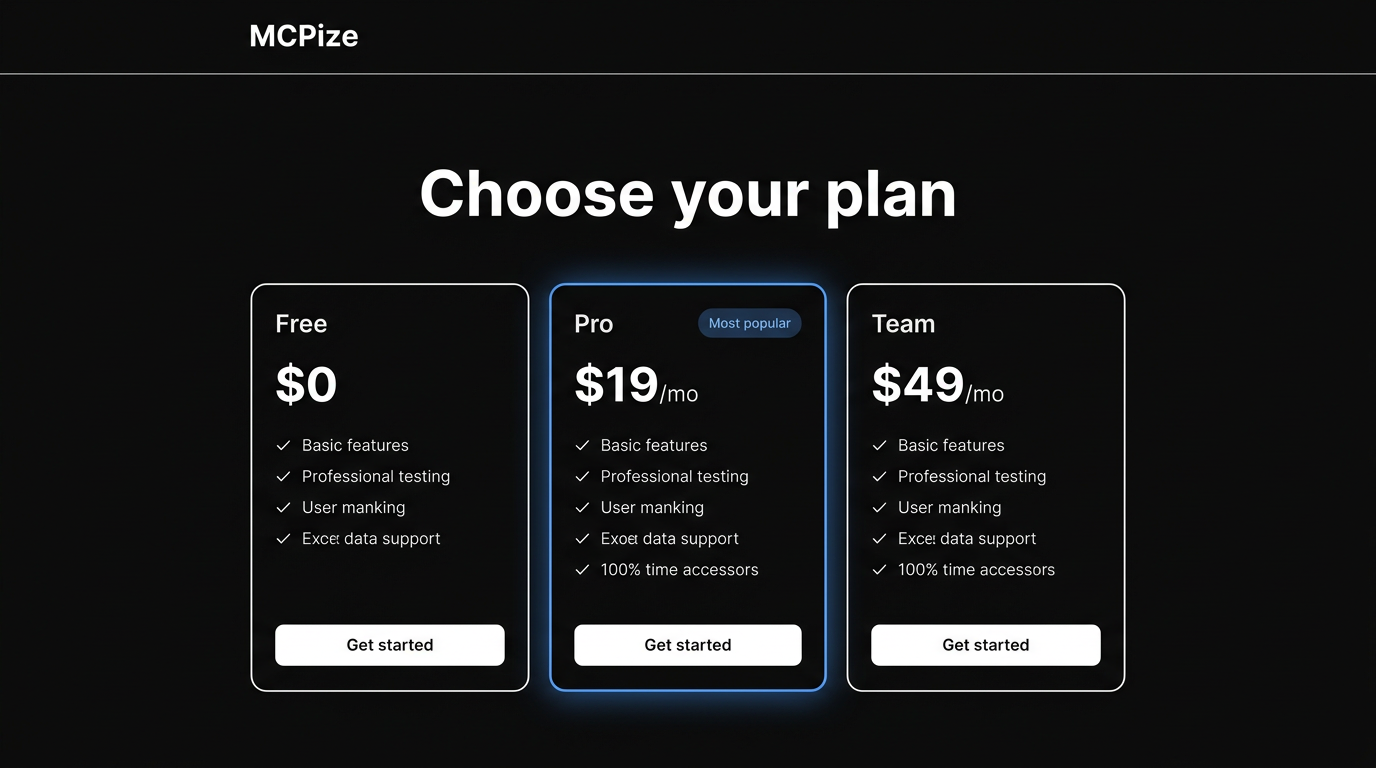
Copy your MCP URL
Once you're signed in, head to your dashboard and copy the MCP URL for the server you just picked. This is the link you'll paste into Claude.
Keep it private
Treat this URL like a password — anyone who has it can call the server as you. Don’t share it publicly.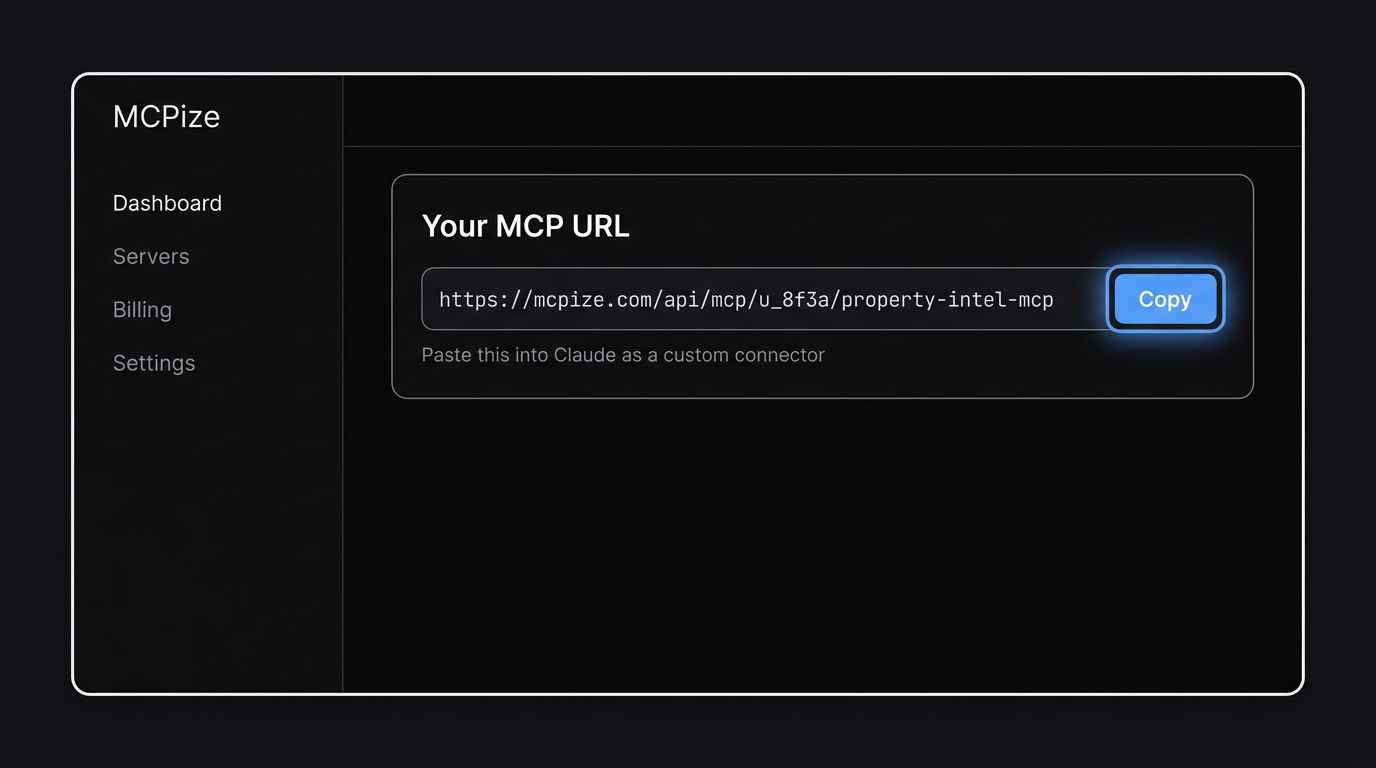
Add it to Claude as a custom connector
In Claude, open Settings → Connectors, click Add custom connector, paste your MCP URL, and save. That's it — the server's tools are now available in your conversations.
You stay in control
Claude asks permission each time a tool runs. You can allow once, always, or per conversation under Settings → Connectors.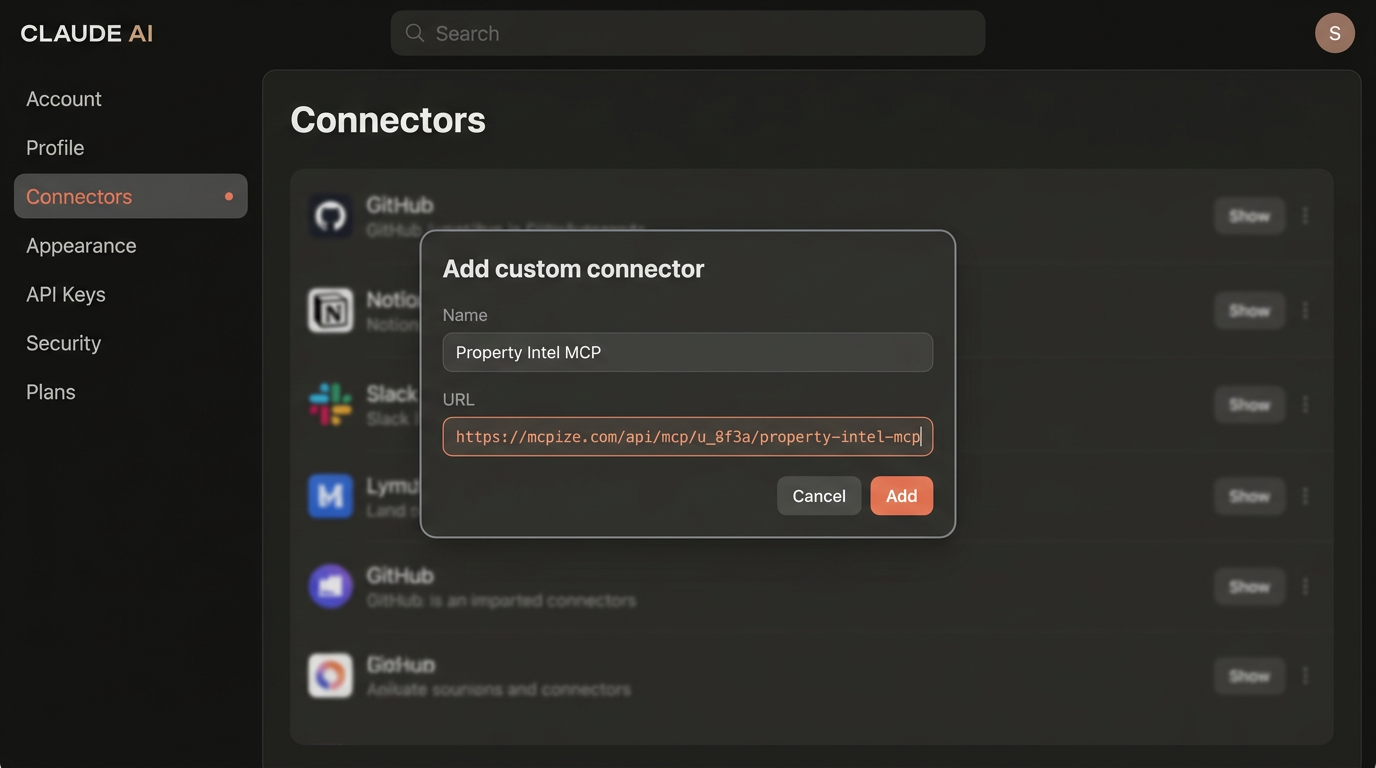
Try it
Test it with a real prompt
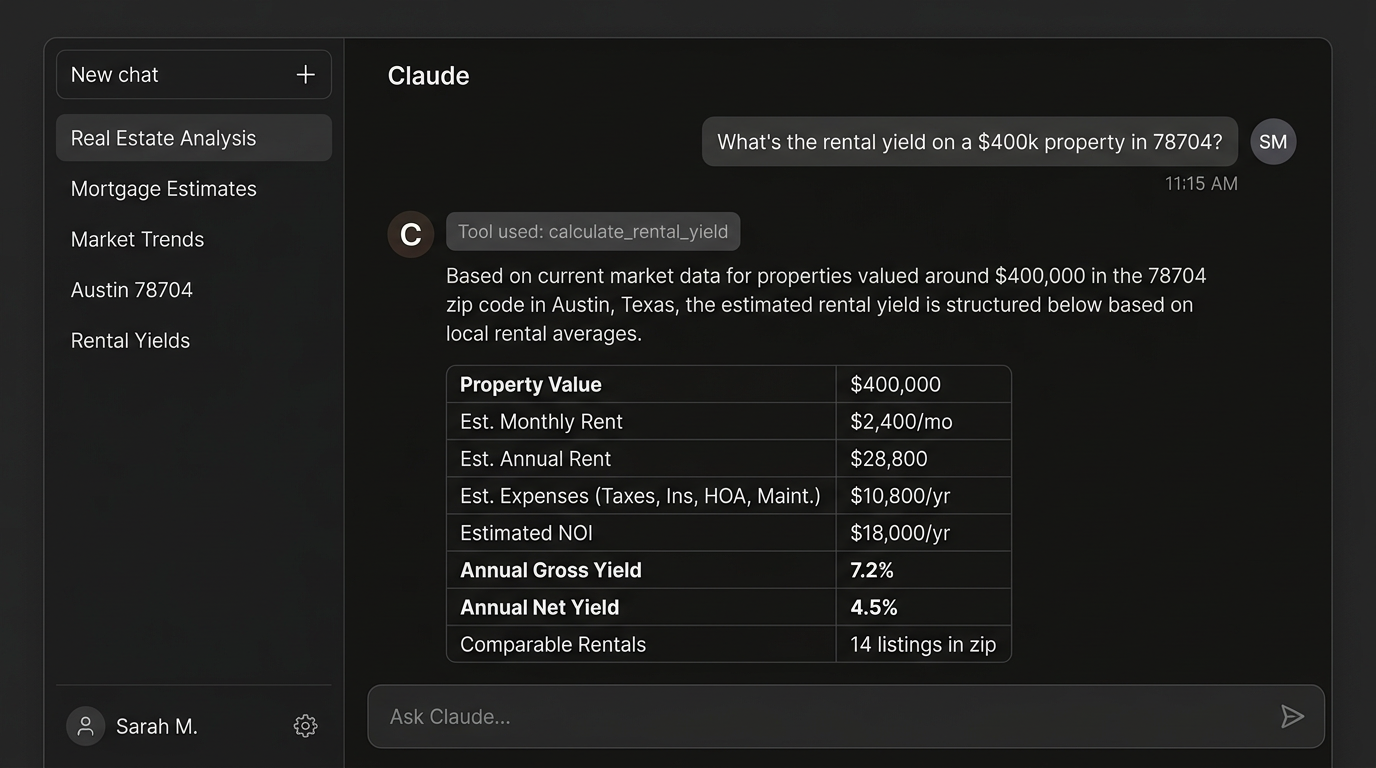
Open a new chat in Claude and ask it something the server can answer. For Property Intel, try:
What's the rental yield on a $400k property in 78704?
Claude will pick up the new tools automatically and ask permission before running them.
Supported clients
More clients coming soon.